




You are in the middle of a gaming session or finishing an important document. Suddenly, everything stops. A sad emoticon stares back at you from a blue background, and your computer restarts. This is the blue screen, and it is one of the most frustrating experiences for any PC user.
While it feels disastrous, this screen actually serves a specific function. Understanding why these crashes happen is the first step toward a stable system. This guide breaks down the primary causes of these interruptions and offers practical advice to help you fix them.
Decoding the blue screen of death: it’s not just a crash
The Blue Screen of Death, often shortened to BSoD, is not just a random error. It is a protective measure designed by Microsoft. When Windows encounters a critical error that it cannot recover from without risking data corruption, it halts all operations immediately.
Think of it as a safety breaker in your home's electrical panel. If Windows continued running during a critical voltage spike or memory error, it could permanently damage your files or the operating system itself. The BSoD stops the machine to prevent this.
The text you see on the screen usually includes a "Stop Code." These error codes, usually found at the bottom of the screen or near a QR code, look cryptic, such as “CRITICAL_PROCESS_DIED or IRQL_NOT_LESS_OR_EQUAL”. These codes point you toward the specific system failure. Reading and noting these codes provides the necessary clues to begin troubleshooting.
When hardware betrays you: RAM, storage, and power
Physical components are often the root cause of instability. When your hardware malfunctions, the operating system loses its ability to process data correctly.
Memory issues are a frequent offender. If a stick of RAM has a physical defect, it cannot hold data reliably. When the processor tries to retrieve information from a bad sector in your RAM, the system panics and crashes. You can diagnose this using built-in tools like Windows Memory Diagnostic or advanced third-party utilities like MemTest86.
Storage drives also degrade over time. An old hard drive with mechanical failures or a modern SSD with corrupt controller logic can fail to deliver necessary data to the system. This interruption forces a blue screen because the OS cannot access vital files.
Try these methods:
- Check connections: loose cables inside the case can cause intermittent failures.
- Inspect power: a failing power supply unit (PSU) delivers unstable voltage, leading to random crashes.
- Clean the PC: dust buildup is the primary cause of overheating.
Another major factor is overheating. Computers generate significant heat, and if your fans are clogged with dust or the thermal paste is dry, components will throttle or shut down to avoid burning out. Monitoring your temperatures is a vital part of troubleshooting hardware issues.
The silent killer: corrupt drivers and software conflicts
While hardware components physically degrade, software issues often stem from internal conflicts or corruption. Drivers are the translators that allow Windows to speak to your components. If these translators are outdated or corrupt, the communication breaks down.
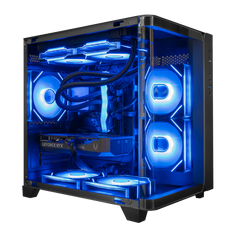
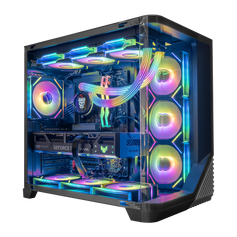
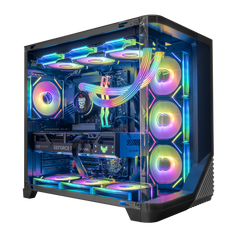
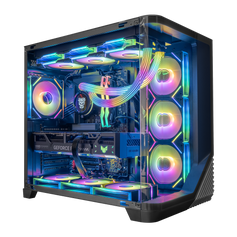
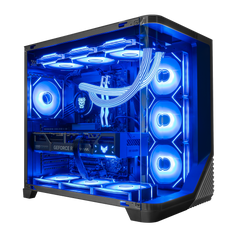
The graphics card is the most complex component in terms of driver management. Whether you have a custom rig or a pre-built NVIDIA GPU desktop, the video drivers interact deeply with the operating system kernel. If a driver tries to access a restricted memory address, the system triggers a BSoD instantly.
Software conflicts frequently arise after you install new programs. Antivirus software or third-party firewalls sometimes identify legitimate system files as threats and block them. This tug-of-war results in system instability.
Updates can also be a double-edged sword. While Windows updates are necessary for security, a buggy patch can introduce incompatibility with existing drivers. If your blue screen of death issues started immediately after an update, rolling back that update is a logical fix.
Pushing limits too far: the risks of overclocking
Enthusiasts often tweak their system settings to get free performance. However, pushing components beyond their rated specifications is a fast track to system failure.
Overclocking involves increasing the clock rate and voltage of your CPU or memory. If the voltage is too low to support the higher speed, the processor makes calculation errors. These miscalculations inevitably lead to a blue screen.
Tweaking memory timings is particularly sensitive. While proper RAM overclocking can boost framerates, aggressive settings often cause instability that only appears under heavy load. If you recently changed settings in your BIOS or UEFI and started seeing crashes, the solution is usually simple: reset the BIOS to default settings.
How to diagnose and fix the problem step-by-step
Finding the exact reason for a BSoD requires a methodical approach. You must isolate variables one by one until the system becomes stable.
1. Analyze the stop code
Write down the code shown on the screen. Tools like BlueScreenView can read the dump files created during the crash. This software will tell you exactly which driver or file caused the blue screen.
2. Check system files
Corrupt system files are a common cause of instability. Windows has built-in tools to repair them. Open the Command Prompt as an administrator and run the command sfc /scannow. This scans for damaged files and replaces them with fresh copies.
3. Clean install drivers
Don't just update your drivers; perform a clean installation. For your graphics card, use a tool like DDU (Display Driver Uninstaller) to completely remove the old version before installing the new one. This eliminates lingering conflicts.
4. Test your drive health
Download a utility like CrystalDiskInfo to check the health status of your SSD or hard drive. If the drive reports "Caution" or "Bad" status, backup your data immediately and replace the drive.
5. Review recent changes
Did you install a new stick of RAM? Did you plug in a new USB device? New hardware is often incompatible or defective. Remove the new component and see if the errors stop.
By methodically checking your hardware, verifying your drivers, and monitoring for overheating, you can resolve almost any blue screen of death scenario. A stable PC is built on routine maintenance and careful configuration.


