







Direct answer: There is no single honest RTX 5080 FPS number. A useful result must identify the game, resolution, graphics preset, ray-tracing settings, DLSS mode, Frame Generation setting, CPU, driver, game build, test date, and measurement. Change any of those variables and the result can change. The practical question is whether a documented test matches the monitor, settings, and games you actually plan to use.
Method note: This guide explains how to read published RTX 5080 performance results. It does not present vendor charts, community comments, or third-party tests as Hyper Cyber benchmark data.
What every RTX 5080 FPS result should disclose
Before comparing two numbers, confirm that they describe the same test. At minimum, look for:
- Game and build: patches can change performance and feature support.
- Resolution: 1080p, 1440p, and 4K create different CPU and GPU loads.
- Graphics preset: a named preset is better than an unexplained "max settings" label.
- Ray tracing or path tracing: these settings can change the workload substantially.
- DLSS mode: Native/DLAA, Quality, Balanced, Performance, and other modes are not interchangeable.
- Frame Generation: results with generated frames must be labeled separately from native or upscaled rendering without Frame Generation.
- CPU and memory: a faster processor or different memory configuration can affect high-refresh and CPU-sensitive results.
- Driver and test date: current drivers and game updates matter.
- Metric: average FPS, 1% low, minimum, frame time, and latency answer different questions.
A chart that omits those details may still look precise, but it cannot tell you whether the result applies to your system.
Separate native rendering, upscaling, and generated frames
Native raster performance
A native raster result renders the game at the stated output resolution without ray tracing, upscaling, or Frame Generation. It is useful as a baseline, but it does not represent every way a current game can be played.
Ray tracing and path tracing
Ray tracing adds a different graphics workload. A result with ray tracing enabled should not be compared directly with a raster-only result. The exact ray-tracing quality setting and the use of reconstruction or upscaling also need to match.
DLSS and Frame Generation
DLSS Super Resolution can render at a lower internal resolution and reconstruct the image for the target display. Frame Generation adds generated frames to the displayed output. Those technologies can change displayed FPS and image quality, but the result is not the same measurement as native rendering.
For Frame Generation results, look at the base rendered frame rate, displayed frame rate, image quality, and latency together. A larger displayed-FPS number does not remove the need for a responsive base frame rate. Game support, available DLSS features, and implementation quality also vary, so use a documented test for the specific title rather than applying one multiplier to every game.
NVIDIA's current overview explains the available technology family: NVIDIA DLSS.
1440p and 4K answer different buying questions
High-refresh 1440p
At high refresh rates, the CPU, game engine, simulation, and background work can become more visible limits because the system is trying to prepare frames quickly. Competitive games and CPU-sensitive simulations may therefore benefit from a stronger gaming processor even when the graphics card is already powerful.
4K
At 4K, the graphics workload normally becomes heavier. The RTX 5080 is a high-end option for this resolution, but the result still depends on the game, preset, ray tracing, DLSS mode, and target refresh rate. Buyers planning a 4K monitor can compare complete systems in the 4K gaming PC collection.
The useful comparison is not "Which resolution produces the bigger number?" It is "Which test matches the display and settings I want?"
Official RTX 5080 specifications that affect the complete system
NVIDIA's current GeForce RTX 5080 specifications provide the hardware baseline. The figures below describe NVIDIA's reference design; add-in-card specifications can vary by manufacturer.
| Item | NVIDIA reference specification | Why it matters |
|---|---|---|
| Architecture | Blackwell | Defines the generation and supported feature set. |
| Graphics memory | 16 GB GDDR7, 256-bit interface | Relevant to texture, resolution, creator, and other GPU-memory-heavy workloads. |
| Total graphics power | 360 W | A starting point for power, cooling, and case-airflow planning. |
| Required system power | 850 W for NVIDIA's stated reference configuration | The final requirement can change with the CPU, board-partner card, connectors, and complete parts list. |
| Feature support | DLSS Super Resolution, DLAA, Ray Reconstruction, Frame Generation, Multi Frame Generation, and Reflex | Published FPS must say which features were enabled. |
NVIDIA notes that the 850 W figure is based on a reference system using a Ryzen 9 9950X and that system requirements can differ. Board-partner card dimensions, clocks, connectors, and power guidance can also vary. Check the actual graphics card and full PC specification rather than applying the reference number blindly.
How to compare an RTX 5080 with another GPU
- Use one test source and one test bench. Mixing numbers from different CPUs, drivers, and procedures creates a false comparison.
- Match resolution and settings. Do not compare a 1440p Quality-mode result with a 4K native result.
- Separate feature modes. Keep native, ray-traced, upscaled, and Frame Generation results in distinct rows.
- Read more than the average. Frame-time behavior and 1% lows can reveal consistency that an average alone hides.
- Check the date. Drivers, patches, and DLSS implementations change. A current result for your game is more useful than an older cross-game average.
- Connect the result to a purchase decision. A percentage matters only if it changes the target resolution, refresh rate, visual settings, workload, or budget.
Vendor performance charts can be useful for understanding the vendor's claimed feature behavior, but they are not a substitute for an independent, fully disclosed comparison. Always read the chart notes to see whether different GPU generations use different upscaling or Frame Generation modes.
Choose the complete RTX 5080 PC, not only the GPU
An RTX 5080 does not determine the whole experience. The processor matters more in very high-refresh and CPU-sensitive games. Memory capacity should follow the actual gaming, streaming, creation, virtual-machine, or local-AI workload. Storage should fit the active library and project files. The power supply, cooling, case clearance, airflow, acoustics, and monitor complete the decision.
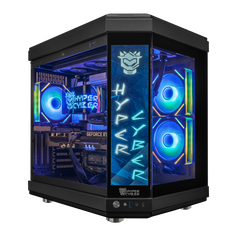
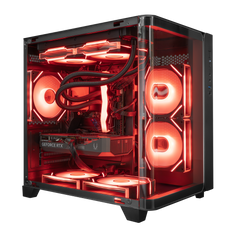
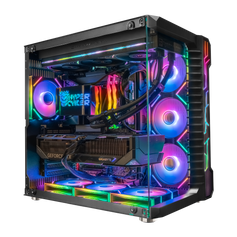
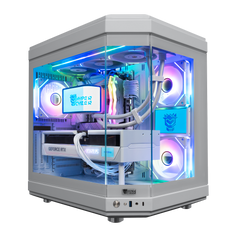
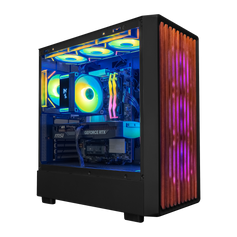
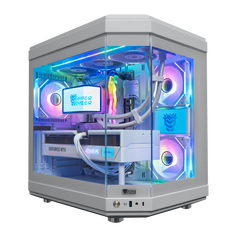
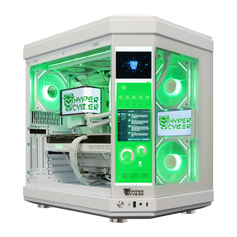
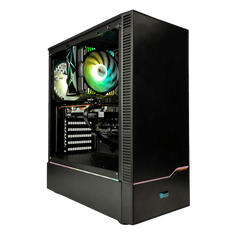
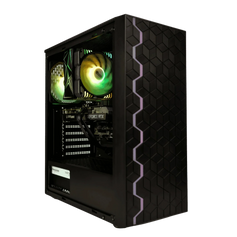
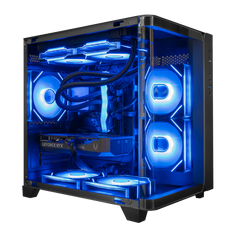
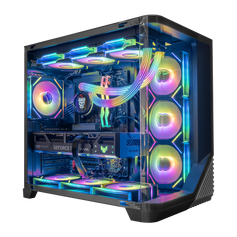
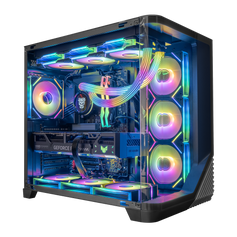
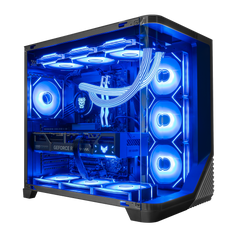
Compare current RTX 5080 gaming PCs by processor, memory, storage, cooling, power supply, and case. If the available combinations do not match the display target or workload, use the custom PC builder to specify the complete system.
When an RTX 5080 is the practical choice
The RTX 5080 can make sense for a buyer targeting demanding high-refresh 1440p, 4K gaming, ray tracing, streaming, or GPU-accelerated creation without automatically moving to the flagship tier. It is most useful when the buyer can name the monitor, games, settings, and non-gaming workloads that need the additional GPU headroom.
Spend elsewhere when the named workload is limited more by the CPU, monitor, memory capacity, storage, acoustics, or overall setup. Consider a higher GPU tier when a documented performance target or memory-heavy workload creates a clear benefit. The model number should follow the requirement, not replace it.
RTX 5080 performance FAQ
What FPS does an RTX 5080 get?
There is no universal figure. FPS depends on the game, patch, resolution, preset, ray tracing, DLSS mode, Frame Generation, CPU, memory, driver, and test method. Use a current result that discloses those variables.
Is the RTX 5080 good for 4K gaming?
It is a high-end option for 4K. The exact experience still depends on the title, settings, ray tracing, upscaling, Frame Generation, and target refresh rate.
Should I compare native FPS or Frame Generation FPS?
Compare both, but keep them separate. Native or upscaled FPS without Frame Generation describes the base rendered output. Frame Generation adds generated frames to the displayed result. Image quality and latency should be considered with the FPS number.
How much graphics memory does the RTX 5080 have?
NVIDIA lists 16 GB of GDDR7 memory on a 256-bit interface for the RTX 5080 reference specification.
Is an 850 W power supply enough for an RTX 5080?
NVIDIA lists 850 W required system power for its stated reference configuration. The correct power supply still depends on the exact graphics card, CPU, connectors, full component list, and upgrade plan. Follow the board partner's guidance and validate the complete system.
What CPU should I pair with an RTX 5080?
Choose from the resolution, refresh target, games, and non-gaming workload. High-refresh or CPU-sensitive titles can justify stronger gaming CPU performance; streaming, rendering, editing, and other threaded work can justify more cores.
Sources and test notes
This page does not claim Hyper Cyber-measured FPS, thermals, acoustics, power draw, latency, or benchmark ownership. Add a numerical result only when the test owner, hardware, game build, resolution, settings, feature mode, driver, date, measurement, and source are recorded.
Match the benchmark to the system you will use
Start with the monitor and workload, find a current test that matches them, and then compare the complete PC. Browse current RTX 5080 gaming PCs or define a more specific configuration in the custom PC builder.


