
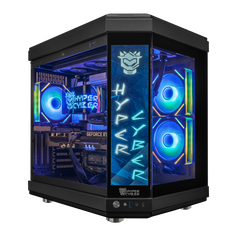
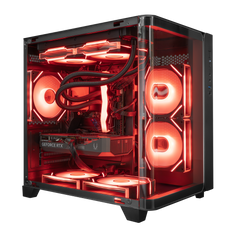
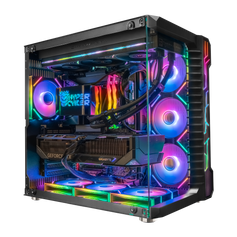
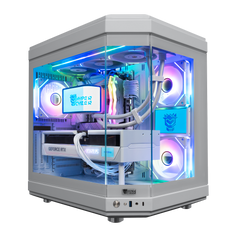
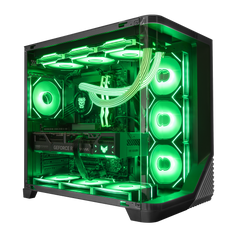
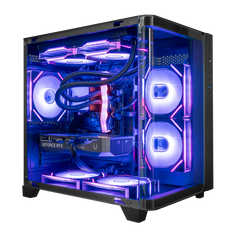
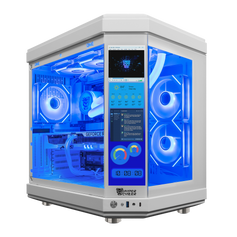
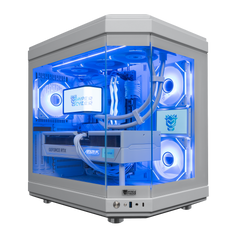






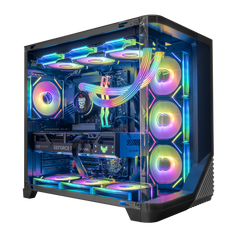
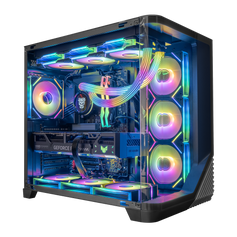
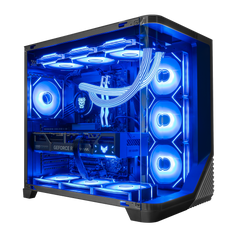


Short answer: for a 240 FPS target in Fortnite, start with 1080p, Performance Mode or carefully reduced settings, a gaming-focused CPU, a balanced modern graphics card, dual-channel memory, an NVMe SSD, and a 240Hz or faster display. Then test the exact game mode you play. No component badge guarantees a locked 240 FPS because the result changes with the Fortnite build, map, mode, settings, drivers, background software, and measurement method.
The important word is target. A PC can average near or above 240 FPS and still dip below it during a crowded fight. A useful buying decision therefore considers both average frame rate and low-frame consistency, not one peak number from a menu or quiet scene.
Fortnite at 240 FPS: the practical PC profile
| Use case | Resolution and rendering mode | Hardware priority | What to validate |
|---|---|---|---|
| Competitive response | 1920 x 1080, Performance Mode or low competitive settings | Gaming-focused CPU first, balanced dedicated GPU, dual-channel memory, NVMe SSD | Average FPS and 1% lows in the real mode and map type you play |
| Competitive play with clearer visuals | 1920 x 1080, DirectX 12 with selected visual settings reduced | Strong CPU plus more GPU headroom | Whether effects, view distance, and anti-aliasing create the dips you notice |
| Sharper high-refresh play | 2560 x 1440, Performance Mode or tuned DirectX 12 settings | Strong gaming CPU and a higher GPU tier than the comparable 1080p target | Frame consistency at native resolution and the exact image-quality settings used |
| Play plus streaming or recording | 1080p or 1440p with broadcast software running | CPU/GPU headroom, hardware encoding, 32GB memory, and adequate storage | The full live workflow, not Fortnite by itself |
This is a decision framework, not a benchmark table. Epic's published PC requirements describe minimum, recommended, and Epic Quality hardware; they do not certify a 240 FPS configuration. A system that exceeds those requirements may still produce different results when resolution, rendering mode, or the rest of the workload changes.
Why 240 FPS is not only a GPU question
At 1080p with reduced visual settings, the graphics card finishes each frame more quickly. That can expose the work still handled by the processor: game logic, player activity, building, physics, draw calls, and the instructions sent to the GPU. In that situation, replacing the graphics card while keeping a weaker CPU can produce a smaller improvement than the model names suggest.
That is why a competitive Fortnite system should be balanced around a strong gaming CPU rather than built as a graphics-card showcase. Use dual-channel memory so the processor is not unnecessarily constrained, keep the game on an NVMe SSD, and choose cooling that lets the CPU maintain normal operating behavior during a full session.
The GPU still matters. It becomes more important when you raise resolution, increase 3D resolution, use DirectX 12, add higher effects, or move toward ray-traced visuals. The mistake is treating one part as universally decisive.
Start with 1080p Performance Mode for a competitive target
Epic describes Performance Mode as a lower-graphical-fidelity rendering option intended to improve frame rate, particularly on less powerful hardware. For a 240 FPS competitive target, it is the most practical place to begin because it reduces GPU workload and lets the system prioritize response over visual detail.
Use 1920 x 1080, confirm 3D resolution, turn off V-Sync for the test, close unnecessary background applications, and record the exact rendering mode. Do not mix a Performance Mode result with a DirectX 12 result or compare one player's 70% 3D resolution against another player's native 100% setting.
Performance Mode is not a guarantee. Fortnite changes over time, and a quiet Creative map does not reproduce every end-game fight or Battle Royale scene. The value of the mode is that it defines a clear, repeatable starting point.
1440p or higher visual settings require more GPU headroom
Moving from 1920 x 1080 to 2560 x 1440 increases the number of pixels rendered per frame by roughly 78 percent. Higher view distance, effects, textures, anti-aliasing, and DirectX 12 features can add more graphics work. A 1440p buyer should therefore reserve more of the system budget for GPU capability while keeping the CPU strong enough for high-refresh play.
Ray tracing belongs to a different goal. Epic states that it requires DirectX 12, is unavailable in Performance Mode, and materially reduces frame rate. If 240 FPS is the priority, keep ray tracing off. If visual quality is the priority, accept that the right PC and settings decision may target a lower frame rate instead.
This is also where a 240 FPS claim needs context. “Fortnite at 240 FPS” without resolution and settings is incomplete. A useful result says 1080p or 1440p, Performance Mode or DirectX 12, the graphics preset, 3D resolution, CPU, GPU, memory configuration, game version, driver, map or mode, and whether the number is an average, 1% low, minimum, or peak.
How much memory and storage do you need?
Epic's current recommended requirements list 16GB of RAM and an NVMe SSD. That is enough to establish a supported baseline for the game. For a new high-refresh system, 32GB of dual-channel memory is the more practical choice when Discord, browsers, capture software, overlays, or streaming tools remain open.
Memory capacity does not create 240 FPS by itself. It prevents the game and background workload from competing for too little memory. Storage works the same way: an NVMe SSD supports loading and general responsiveness, but a larger SSD does not replace CPU or GPU performance. Choose capacity based on Fortnite, other games, updates, clips, and local recordings.
A 240Hz monitor is part of the system
A 240 FPS target makes the most sense with a 240Hz or faster display. A lower-refresh monitor cannot present 240 unique screen refreshes each second, even though rendering above the refresh rate can still affect latency. Check that the monitor, cable, port, Windows refresh-rate setting, and in-game display mode all support the intended refresh rate.
Frame rate and refresh rate are related but not identical. FPS is what the PC renders; hertz is how often the display refreshes. A complete setup needs both sides configured correctly.
Streaming changes the requirement
Fortnite by itself is only one workload. Streaming adds broadcast software, browser sources, alerts, voice chat, encoding, and sometimes local recording. A modern GPU hardware encoder can reduce the encoding burden, but the system still needs CPU, GPU, memory, and storage headroom for everything running at once.
If you plan to stream, validate the PC with the real broadcast scene active. A result recorded with every background application closed does not answer whether the same system will hold its frame consistency while live.
How to verify a Fortnite 240 FPS result
- Record the context. Note the date, Fortnite version or season, graphics driver, Windows version, CPU, GPU, memory capacity and channel configuration, resolution, 3D resolution, rendering mode, preset, and frame-rate cap.
- Use a repeatable scenario. Test the same map, mode, route, and time window. A menu, empty island, Creative aim map, and late Battle Royale circle are different workloads.
- Capture average FPS and 1% lows. Average FPS describes the overall rate. The 1% low summarizes the slowest one percent of recorded frames and helps reveal stutter or heavy dips that an average can hide.
- Repeat the run. Use at least three comparable passes and report the spread instead of selecting the single best number.
- Test the real workload. If you stream, record, use Discord, or keep browser sources open, include them in the final validation.
Do not describe a peak counter reading as “stable 240 FPS.” Stability requires a repeatable capture and low-frame data. If the average is high but the lows fall well below the target in the scenes that matter, adjust settings or the hardware balance around the actual bottleneck.
What should you prioritize when buying?
For 1080p Performance Mode, prioritize the gaming CPU, dual-channel memory, cooling, and a balanced dedicated GPU. For 1440p or higher DirectX 12 settings, preserve the strong CPU and move more of the budget toward the GPU. For streaming, add memory, encoder, and storage headroom.
Do not pay for the most expensive graphics card if it forces a weaker processor in a CPU-limited competitive setup. Do not buy a high-end CPU and then under-size the GPU for a 1440p visual target. Start with the monitor, resolution, rendering mode, and workload; then choose the complete system.
Fortnite 240 FPS FAQ
Can Epic's recommended PC requirements guarantee 240 FPS?
No. Epic's requirements describe supported hardware levels, not a 240 FPS certification. A 240 FPS result depends on the complete configuration, resolution, rendering mode, settings, game version, map or mode, and measurement method.
Is Fortnite at 240 FPS more CPU- or GPU-dependent?
At 1080p with Performance Mode or reduced settings, CPU performance can become especially important because the GPU finishes its work more quickly. At 1440p or higher visual settings, the GPU carries more of the load. A balanced system is the safer choice.
Do I need 32GB of RAM?
Epic lists 16GB in its recommended requirements. For a new high-refresh system, 32GB of dual-channel memory is practical when streaming, recording, browsing, Discord, or other background tools remain open. More memory does not guarantee a higher frame rate.
Should I use Performance Mode or DirectX 12?
Use Performance Mode when competitive frame rate and response are the priority. Use DirectX 12 when higher visual features matter more. Epic says ray tracing requires DirectX 12 and is not available in Performance Mode.
Does a 240Hz monitor guarantee that I will see 240 FPS?
No. The monitor can refresh up to its configured rate, but the PC still has to render the frames. Confirm the display connection and Windows refresh-rate setting, then measure the game under the intended settings.
What is more useful than a peak FPS number?
Use a repeatable test with average FPS, 1% lows, the exact settings, and the scene or mode. That makes the result comparable and reveals dips that a peak counter reading can hide.
Choose the complete system, then validate it
A Fortnite 240 FPS PC should be selected around a defined target: resolution, rendering mode, settings, monitor refresh rate, and whether you stream. Browse current gaming PCs by processor, graphics card, memory, and storage, or configure a custom PC around the exact setup you plan to use.
Updated September 2, 2026. This guide uses Epic Games' current PC requirements and rendering-mode guidance. It does not present an estimate, vendor example, or unverified product claim as a Hyper Cyber benchmark.


